 Qrop
QropPractical QR code uses for small business with Qrop
By Qrop Team ·
Most small businesses start on Qrop the same way: open the generator, pick a data type, download a code. That covers a surprising amount of ground, a Wi-Fi code for the counter, a vCard for a business card, a poster code for a promotion. But the moment a QR code needs to happen without a human clicking a button, tied to an order, a ticket, a product, at the rate your business actually sells, the dashboard stops being the right tool and the API becomes the only one.
This guide walks through both paths with real examples: what a small café, a boutique retailer, an online store, and a small events business each actually do, step by step, in the dashboard or in code. If you've read the guide on how Qrop's plans scale with business size, this is the companion piece: less about pricing tiers, more about what you'd actually type or click.
Two ways in: the dashboard and the API
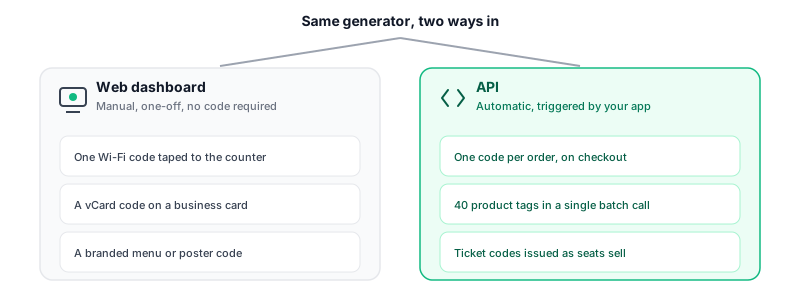
Both paths produce identical output, the same custom SVG renderer, the same automatic error-correction upgrade when a logo's involved, the same colour-contrast guard rejecting combinations a phone camera would struggle to scan. The difference is entirely about who, or what, is doing the generating.
The dashboard is for a person deciding, in the moment, that a QR code needs to exist: pick a type, set the colours, download it. The API is for a piece of software deciding that, automatically, every time a condition is met, an order placed, a ticket sold, a product listed, without anyone opening a browser.
Example: a café builds its in-store QR pack in the dashboard
A small café needs three codes, total, to cover its entire in-store setup: one for the guest Wi-Fi, one vCard for the owner's business cards, and one linking to an online ordering page for a window sticker. All three fit comfortably inside the free registered allowance and none of it needs code.
- Open the generator and select Wi-Fi as the data type. Enter the guest network's SSID and password, choose WPA as the encryption type, and Qrop checks the contrast of the chosen colours before letting the code be generated.
- Switch to vCard, fill in the owner's name, phone, and the café's website, and download it as SVG so it stays sharp printed small on a business card.
- Switch to URL, point it at the online ordering page, add the café's logo (error correction jumps to H automatically once a logo's in the centre slot), and choose a rounded module style to match the café's branding.
- Download all three as PNG for print, at 1024px, comfortably above the resolution needed for a window sticker or table tent.
Example: an online store stamps a QR code on every order automatically
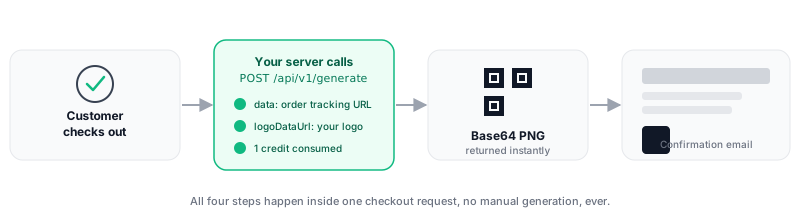
A boutique online store wants every order confirmation email to include a QR code linking to a live tracking page, with the store's logo composited in. That's not a job for the dashboard, it happens hundreds of times a month and needs to happen the instant an order is placed, so it's a single server-side call to /api/v1/generate wired into the checkout flow.
- The request sends the order's tracking URL as data, type: "url", and the store's logo as a base64 logoDataUrl so no external fetch is needed.
- The response comes back in well under 200ms warm, a base64-encoded PNG the server drops straight into the confirmation email template.
- Each call costs exactly 1 credit, drawn from the store's Starter plan allocation, no separate charge for the logo since the API's flat 1-credit rate already includes it.
- A minimal request body: { "data": "https://shop.example/track/ORD-4821", "type": "url", "format": "png", "resolution": 1024, "logoDataUrl": "data:image/png;base64,..." }
Example: a boutique batch-generates its whole product tag run
The same store, a few weeks later, needs QR codes for 40 new product tags landing in stock, each linking to its own product page. Calling /api/v1/generate 40 times in a loop would work, but /api/v1/generate/batch does it in one request: up to 25 items per call, one shared logo applied across the whole batch, so a single order run of 40 codes is two batch calls (25, then 15) rather than 40 separate ones.
A batch request lists each item's data and type individually, but the format, resolution, and logo are set once for the whole batch, which is exactly the shape a product-tag print run needs: same branding, same size, different destination URL per tag.
Response includes a results array with one entry per item and a single creditsConsumed total for the whole batch, so reconciling the charge against the print run is a one-line check, not 40.
Example: an events business issuing ticket codes as they sell
A small events business selling tickets to a single show doesn't know in advance how many codes it'll need, so generating them all upfront doesn't fit. Instead, each ticket code is generated the moment a ticket sells: the checkout handler calls /api/v1/generate with a unique per-ticket URL (a validation endpoint the door staff's scanner hits) as data, and the resulting PNG goes straight into the ticket-confirmation email.
This is the same pattern as the order-confirmation example, one API call per event, triggered by a real action, rather than a batch run. The choice between a single call and a batch call comes down to whether you know all the destinations at once (batch, for a print run) or whether they arrive one at a time over hours or days (single calls, for anything sold live).
Choosing between the dashboard and the API for your own workflow
- If a human is deciding, in the moment, that a code needs to exist, and it happens a handful of times a month, use the dashboard. There's no reason to write code for three Wi-Fi signs a year.
- If a code needs to exist every time something else happens (an order, a signup, a ticket sale, a new product listing) without anyone clicking a button, that's the API, regardless of how small the business is.
- If you know the full list of destinations upfront (a print run of product tags, a batch of event badges), use /api/v1/generate/batch and get up to 25 codes in one call instead of one request per item.
- If destinations arrive one at a time as real events happen (a live checkout, a ticket sale), use /api/v1/generate per event rather than trying to batch something that isn't actually batched in reality.
Getting an API key and making your first call
- Register a free account at /register, only a name and email address required.
- From the billing dashboard, subscribe to an API plan, Starter at R149/month for 3,000 included credits covers most small-business volume to start.
- Open the API Keys tab and create a key. It's shown once, copy it immediately, Qrop stores only a hash and can't display it again.
- Make a test call: POST to /api/v1/generate with Authorization: Bearer <your-key> and a JSON body specifying data, type, and format. The response is a base64 image you can drop straight into an <img> tag or save to a file.
- Check /api/v1/usage any time to see the current period's credit consumption and how much of your monthly allocation is left before requests start returning a 402.
Frequently asked questions
Do I need to be a developer to use Qrop for a small business?
No. The dashboard covers the vast majority of small-business use cases (menus, Wi-Fi codes, product tags, business cards) with no code involved at all. The API is there for the specific case where a code needs to be generated automatically as part of your own software, an order confirmation, a ticketing system, a product catalogue, not as a more advanced version of the same task.
Can I mix the dashboard and the API on the same account?
Yes. They share the same account, and on the web side, the same free monthly allowance and purchased credit balance. A subscribed API plan is a separate metered pool for programmatic calls, but nothing stops you from also generating the odd one-off code by hand in the dashboard.
How fast is an API call, in practice?
In the warm, steady-state case, a single generation with a logo typically completes in 130 to 155 milliseconds end to end, fast enough to sit inline in a checkout request without a noticeable delay. The first call to a new server instance adds roughly 1.5 to 2 seconds of one-time cold-start overhead.
What happens if a batch request partially fails?
It doesn't partially process, either the whole batch succeeds or none of it does. If you don't have enough credits to cover every item in the batch, the request is rejected outright with a 402 before anything is generated, so you're never left reconciling which items in a batch of 25 actually went through.
Should a small business start on the dashboard or go straight to the API?
Start on the dashboard, it's free and requires no setup. Move to the API only once you notice a code needs to be generated automatically as part of a real workflow, an order, a signup, a sale, rather than decided by a person. Plenty of genuinely small businesses never need to make that move at all, and that's a fine place to stay.
Related guides
Ready to create your QR code?
Generate a free QR code in seconds: custom colours, logos, and PNG, SVG or PDF output.
Open the generator